


StatusGator+TV
Display your status page on a TV.
Overview
Display your StatusGator status page on a TV to provide real-time service status updates in large spaces with big monitors. This integration is perfect for operations centers, lobbies, or any environment where keeping your team informed is crucial. By showcasing the status page on a TV, you can ensure everyone stays updated on service disruptions or downtime, promoting transparency and improving operational awareness.
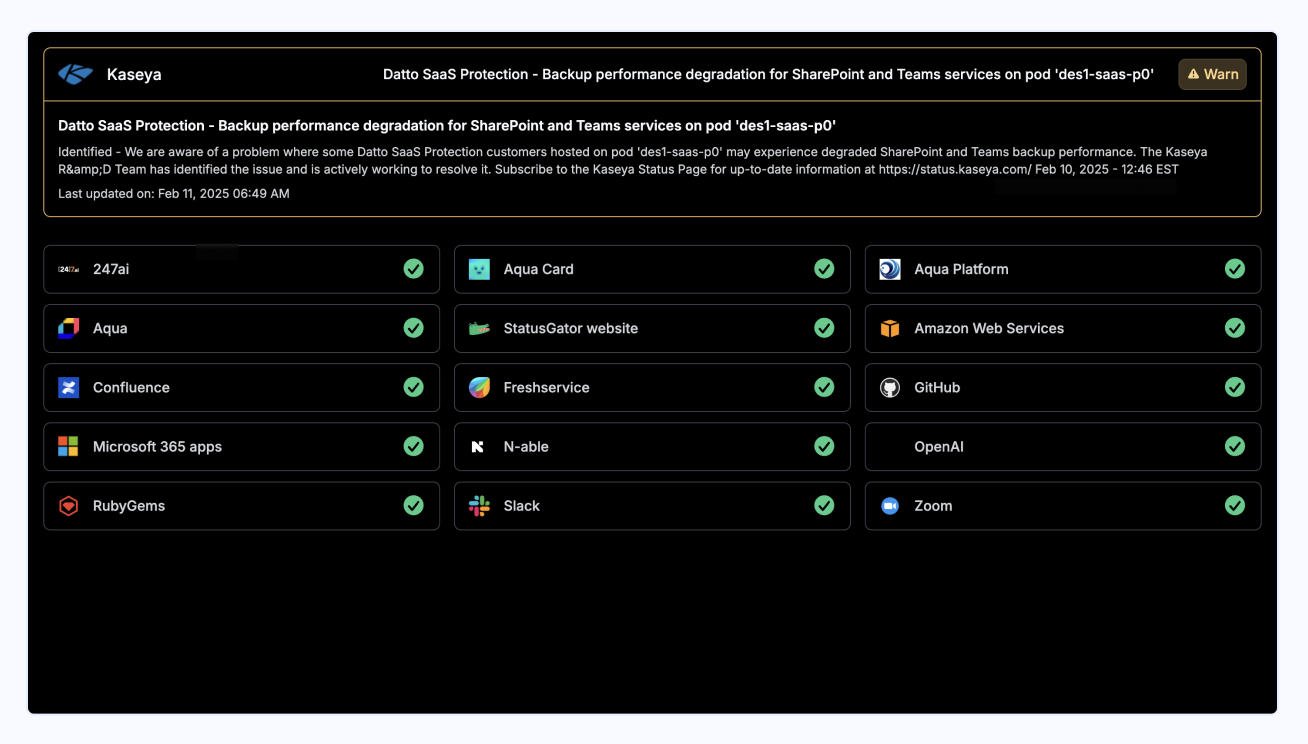
Key features
- Real-time updates: Display live updates of your service status to ensure your team is always informed of any disruptions or downtime.
- Ideal for large spaces: Perfect for operations centers, offices, or lobbies where multiple people need to stay updated on the status at once.
- Increased visibility: Enhance operational awareness by having your status page visible to everyone, fostering transparency across the team.
- Easy integration: Set up the TV display to show your StatusGator status page with minimal configuration.
- Promote reliability: Demonstrate your commitment to transparency and reliability by keeping service status visible at all times.
Integration details
Start free trialCategory
Available on plans
Business plans
-
Free
-
Starter
-
Team
-
Corporate
-
Enterprise
Education plans
-
Free
-
Small
-
Medium
-
Large
-
Extra Large
Resources
Help docFrequently asked questions
-
How do I get the TV integration URL?
To display your status page on a TV, navigate to the Integrations page in your StatusGator account and select TV Integration. You’ll be provided with a URL that you can use to display your status page on a TV screen. This URL is optimized for large monitors and can be opened directly in a web browser. -
How to I get the page displayed on the TV?
You'll need to utilize a Chromecast, Apple TV, or similar device to display the status page on your TV. Connect the device to your TV and open the TV integration URL in a web browser. Then, cast the browser tab to your TV using the device's casting feature. This will display the status page on your TV screen. -
Is the TV integration compatible with Rise Vision, ScreenCloud, or other digital signage software?
Yes! Any digital signage software that supports web pages can be used to display your status page on a TV. Simply add the TV integration URL as a web page source in your digital signage software. This will allow you to display your status page alongside other content on your TV screen. -
Can I customize the appearance of the TV display?
Yes, you can customize the layout, theme, and optionally expand incident descriptions in the TV display. This allows you to tailor the appearance to suit your needs and ensure that the display matches your preferences. -
Is it possible to display different status pages on multiple TVs?
Yes, you can achieve this by creating different boards in your StatusGator account. Each board has its own set of monitors, which are reflected in the TV integration. By using the unique URL for each board, you can display different status pages on multiple TVs. -
Where should I use the TV integration?
This integration is ideal for network operations centers (NOCs), helpdesk call centers, or IT offices. Or choose to display your board in a public space where real-time status updates are important. It's especially useful for keeping your employees informed about service disruptions or downtime.
Can't find your question? Email us to arrange a time to discuss. We'd love to chat!
Other integrations

OptiSigns
Show your status page on OptiSigns digital signage.

Rise Vision
Show your status page on Rise Vision digital signage.
We have 40 integrations. See all